
How to Update Your New Websites
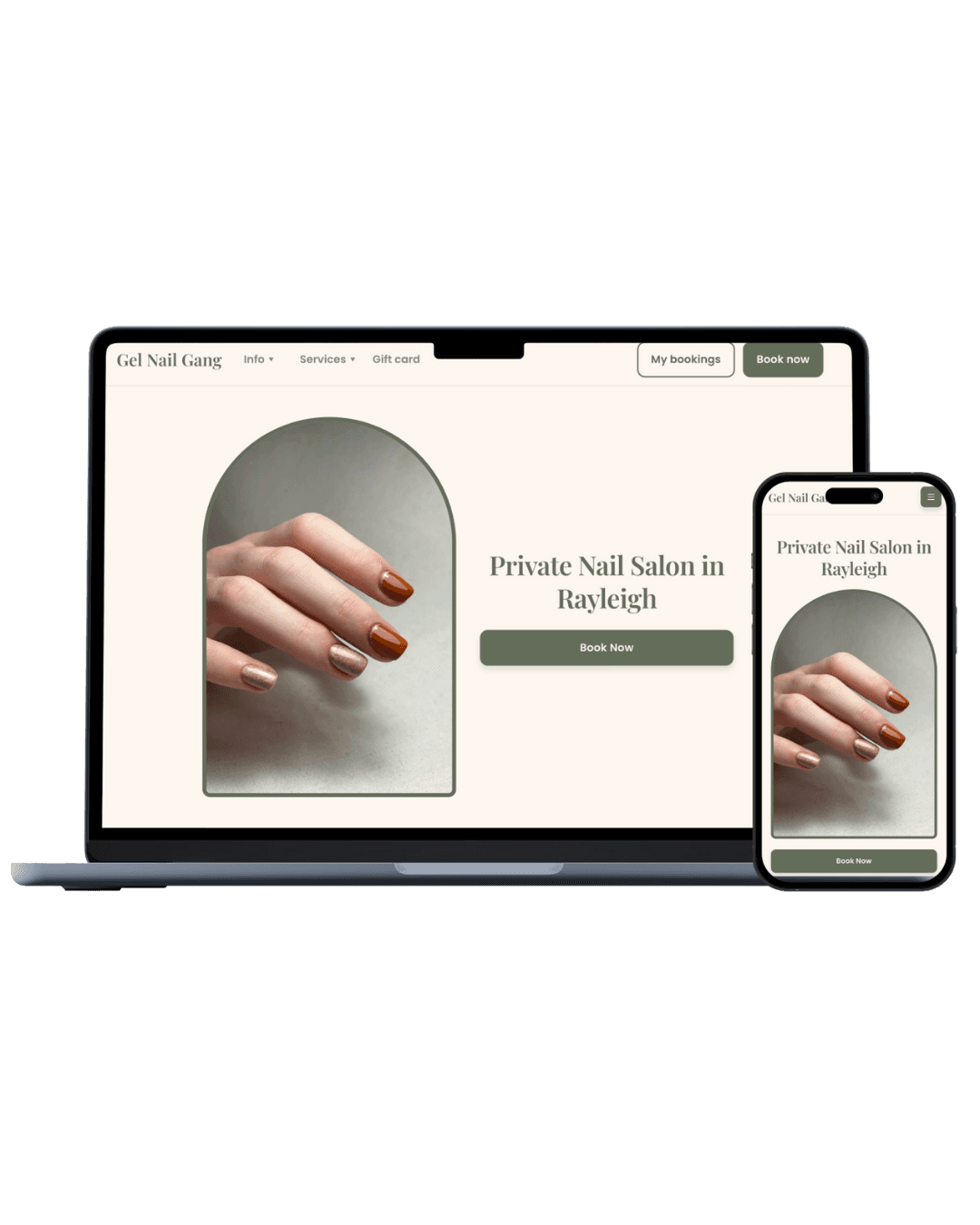
🖥️ How to Use the New Website Builder
Step-by-step instructions
1. Go to your Website Settings
-
Open Settings.
-
Click on Website.
2. Open the Website Theme editor
-
Click the menu in the bottom left-hand corner.
-
Select Website theme.
3. Customize your website’s look
-
Change colors and fonts under the theme settings.
-
Click through the font options to preview how they look — all the fonts from the previous builder are included.
4. Save your changes
- Click Save in the top right corner.
5. Edit individual blocks
-
Click on the Header block to:
-
Adjust the header size.
-
Edit the title text.
-
6. Explore additional design options
-
Slide the options at the bottom to the right to:
-
Change the image layout.
-
Add a border.
-
Apply an image filter.
-
7. Repeat for each section
-
Scroll down and edit each block individually:
-
Update the title.
-
Adjust the color.
-
Add a button.
-
Do the same for the Lookbook section.
-